Skip to content
ImageLabeling

Bounding box annotation that starts with AI drawn boxes

Bounding box annotation is the backbone of most object detection datasets, and small inconsistencies in how boxes are drawn show up later as lost precision. ImageLabeling draws the first boxes for you, lets your labelers fix them with the keyboard, and keeps every team on the same rules for tight boxes, occluded objects and objects cut off by the frame.

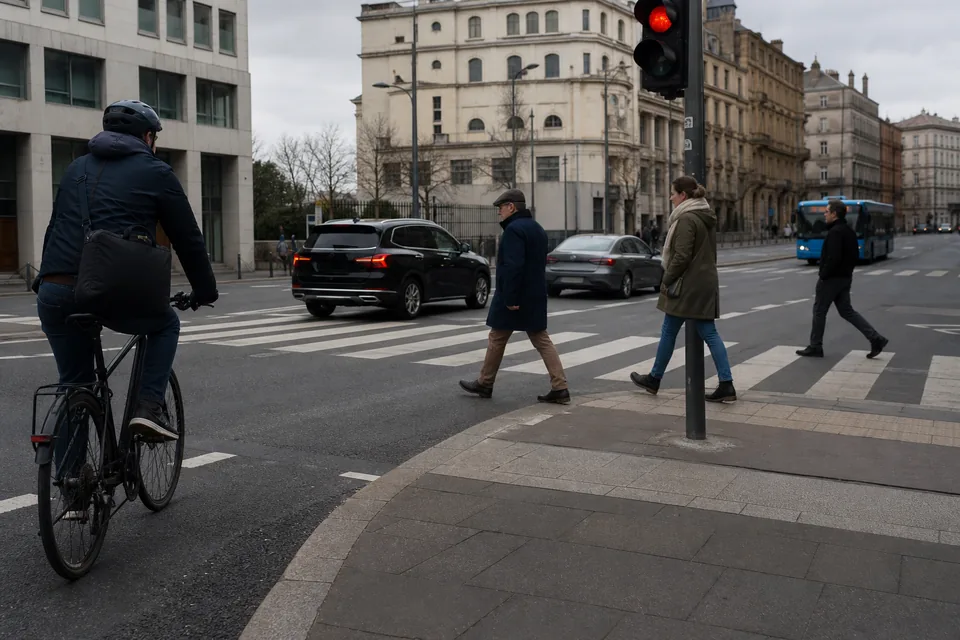
City crossing with cars, a cyclist, pedestrians on a zebra crossing and a traffic light

A bbox label tool built for speed

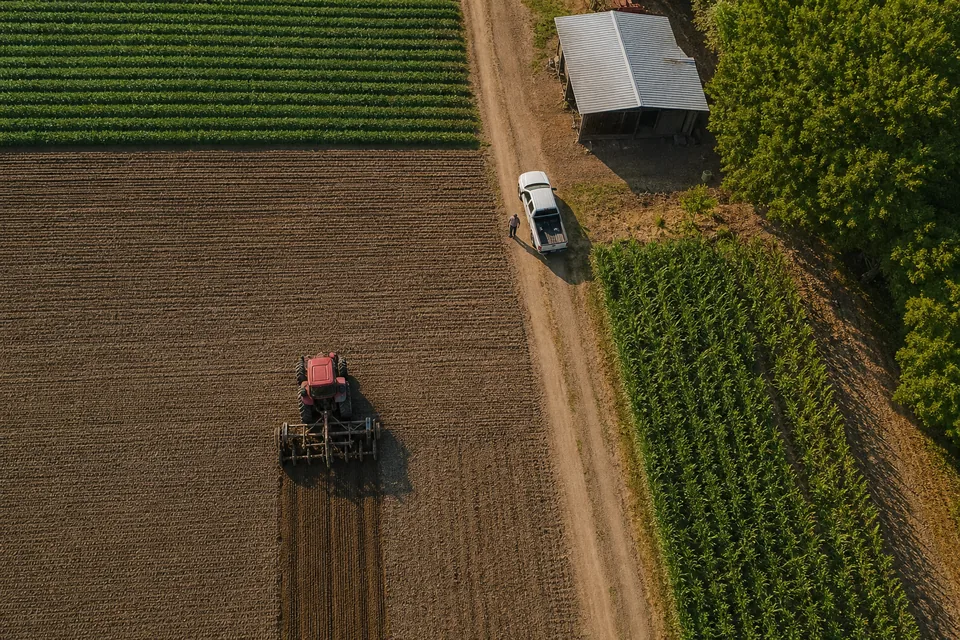
Aerial drone view straight down of farm fields with a red tractor, a white pickup truck, a barn and a dirt road

Press B, drag from one corner to the opposite corner, pick the class and move on. Corners and edges stay draggable, so a box that is a few pixels off takes one move to fix. Zoom in for small objects, and undo history keeps every change reversible while you work. Each box stores its class, its coordinates and, on Team and above, attributes you define in the schema.

  • B draws a new box
  • A accepts the AI proposal for the selected object
  • D saves and opens the next image
  • Class picker opens on every new box, ordered by your schema

AI pre-labels as the first draft

Before a labeler opens an image, the AI model proposes boxes for the classes in your label schema, each with a confidence score. Labelers sort by confidence, accept the clear ones and spend their time on the uncertain ones. Every proposal still passes through a human, and nothing reaches export unreviewed when review is on. Read how this works on the auto labeling page.

Rules for tight bounding box annotation

A detector learns the edges you draw. If half your team leaves a margin and the other half does not, the model learns a blur of both. Write the rules into the project once and every labeler sees them.

  • The box touches the outermost visible pixels of the object on all four sides
  • No padding for shadows, reflections or motion blur unless the class definition says so
  • Thin parts that belong to the object, such as a forklift mast, are inside the box
  • Loose straps, cables and attached labels are outside unless they are part of the class
  • One box per object instance, never one box around a group of the same class

When a box is the wrong shape

Boxes stay axis aligned, so long diagonal objects pull in a lot of background. For pipes, cracks or rotated parcels, a polygon from the image segmentation tool describes the object better, and the COCO export also stores the enclosing box of every polygon.

Occluded objects

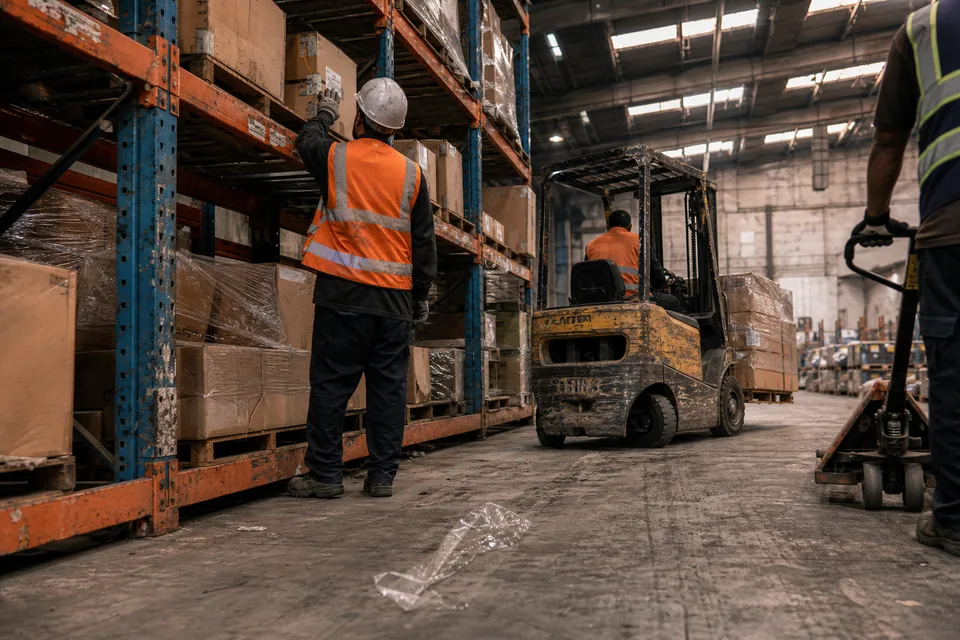
Pallet rack in a logistics warehouse with cardboard boxes, a forklift in the aisle and a worker in a high visibility vest and hard hat

An object partly hidden behind another object is occluded. The common convention is to box only the visible part and mark the object as occluded with an attribute. Some teams prefer to box the full estimated extent. Either works, as long as one convention is written down and used across the dataset. Attributes per object are available on Team and above.

1

Truncated objects

An object cut off by the image border is truncated. Draw the box to the image edge, not beyond it, and set a truncated attribute so you can filter these objects at training time. Very small fragments that no person could identify should usually stay unlabeled, and your guidelines should say how small is too small.
2

Crowds and groups

Dense groups, such as a pallet of identical boxes or a crowd in the background, are hard to label one by one. Decide per class whether you label every instance or skip objects below a size limit, and record that choice in the project guidelines.

Review that keeps boxes consistent

A reviewer sees every submitted image, approves it or sends it back with a comment pinned to the box in question. On Team and above, consensus labeling on a sample of images shows where labelers disagree, which is usually where the rules are unclear. Business adds a QA score per labeler.

Export boxes in the format you train on

Boxes export to COCO JSON as x, y, width and height in pixels, to YOLO txt as normalized center coordinates, to Pascal VOC XML as corner coordinates and to CSV. Pick the format at export time, not at labeling time. See the YOLO labeling tool and COCO annotation tool pages for the exact structure, or compare all tools on the data annotation tools page.

Boxes on every plan

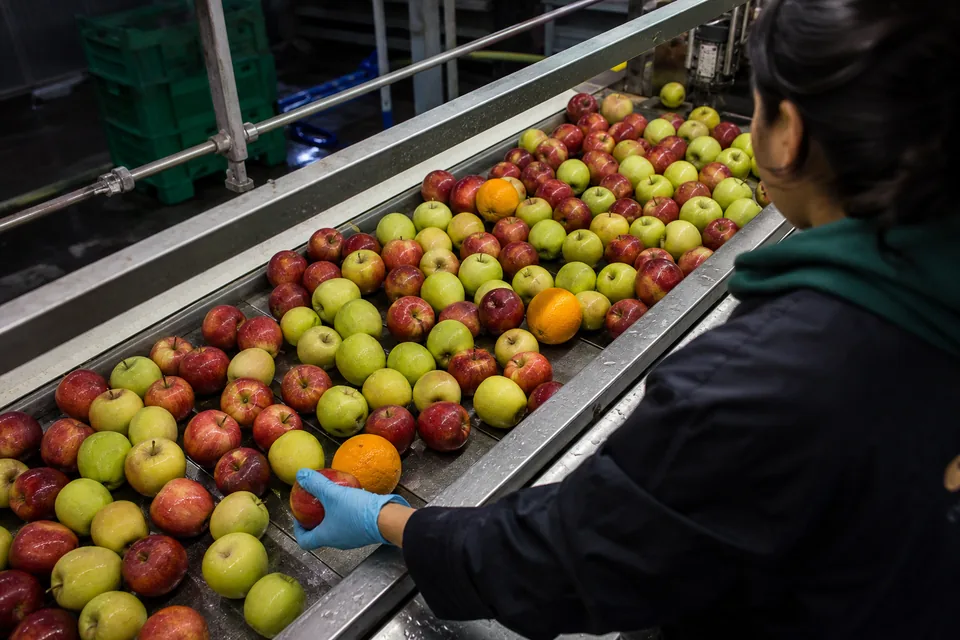
Apples and a few oranges rolling on a stainless steel conveyor belt in a packing plant, a gloved hand sorting

Bounding boxes, polygons, points and image classes are part of every plan, from Starter at 24 USD per month billed yearly. Attributes for occlusion and truncation start on Team. The full limits per plan are on the pricing page.

FAQ

Should I draw the visible part or the full object?

Draw the visible part and mark the object as occluded, unless your model needs the full extent. The most important thing is that every labeler follows the same rule.

Does the AI draw tight boxes?

The AI model proposes boxes with a confidence score, and they are a first draft. Your labelers adjust edges with a drag and accept the result, so the final box follows your rules.

Can I import boxes I already have?

Yes. Import existing labels as COCO JSON, YOLO txt, Pascal VOC XML or CSV, then review and correct them in the same editor.

Are rotated boxes supported?

Boxes are axis aligned. For angled objects, use a polygon. It keeps the exact outline, and the COCO export also stores its enclosing box.

See AI drawn boxes on your own image

Upload one image to the free demo, choose Detect objects and adjust the boxes in the real editor.