Data annotation tools for boxes, polygons, masks, keypoints and classes
Picking the right data annotation tools decides how much a labeled image costs and how well your model learns from it. ImageLabeling gives you five annotation types in one keyboard first editor, with AI pre-labels for each of them. This page explains what every tool does, what it costs you in labeling time, and which model task it feeds.

Five data annotation tools in one editor
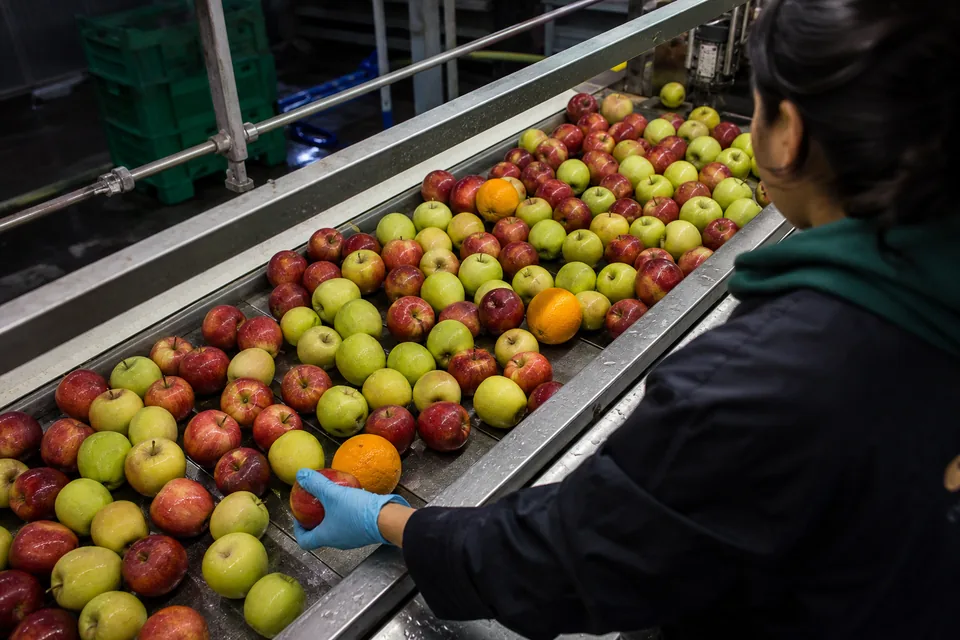
Every project in ImageLabeling starts with a label schema: your classes, their colors and, on Team and above, attributes per object. The schema then decides which tools your labelers see. You can mix tools in one project, for example boxes for vehicles and keypoints for pedestrians.
The AI model proposes labels for each of these types with a confidence per object. Your labeler accepts with A, edits or rejects, then moves to the next image with D.
- Bounding box (key B) for object detection
- Polygon (key P) for precise outlines and instance segmentation
- Segmentation mask with brush and polygon for pixel level labels
- Keypoint (key K) for points and pose skeletons
- Image class for whole image classification
Bounding boxes for fast object detection
A box is the cheapest label to draw and the most common input for detection models. It stores four numbers per object and exports cleanly to COCO, YOLO and Pascal VOC. Use boxes when your model only needs to know where an object is, not its exact shape. Our bounding box annotation guide covers tight box rules and how to handle occluded or cut off objects.
Polygons when the shape matters
A polygon traces the outline with a series of points. It takes longer than a box, but it captures thin, angled or irregular objects without the background a box would include. Polygons are on every plan and export to the COCO segmentation field, so they work for instance segmentation training.
Segmentation masks for pixel level labels

A mask marks every pixel that belongs to an object or a region. Use masks for defects, crops, roads, organs in research images or anything without clean edges. You paint with the brush, refine with the polygon tool and zoom in for detail. Masks are included from the Team plan up. Read more in our image segmentation tool page.
Keypoints for pose and landmarks
A keypoint marks one location, such as a joint, a corner or a landmark. Single points are on all plans. Keypoint skeletons, where named points connect into a pose, are on Business and Enterprise. The keypoint annotation tool page explains skeletons and visibility flags.
Image classification labels
Sometimes the model only needs one answer per image: defect or no defect, ripe or unripe, empty shelf or full shelf. The class picker assigns one or several image level classes in a single keystroke flow. Hierarchical classes let you keep broad and fine labels in one schema, for example vehicle, then truck, then tow truck. Classification is the fastest task to review, so it is a good first project for a new labeling team.
How to choose between data annotation tools
Start from the model you plan to train, not from the tool you like to draw with. Then check the cost: more precise labels take more time per object.
If you are unsure, label a small batch with two tools and train a quick baseline on each. Dataset versions let you freeze both batches and compare them later. Our blog post on bounding box vs segmentation goes deeper into that trade off.
| Model task | Tool to use | Relative labeling effort |
|---|---|---|
| Object detection | Bounding box | Low |
| Instance segmentation | Polygon or mask | Medium to high |
| Semantic segmentation | Mask | High |
| Pose estimation | Keypoint skeleton | Medium |
| Image classification | Image class | Very low |
Annotation types per plan
- Starter: boxes, polygons, points, image classes
- Team: adds segmentation masks and attributes
- Business: adds keypoint skeletons and custom schemas
- Enterprise: every annotation type
See the full comparison on the pricing page.
Every tool exports to the formats you train on
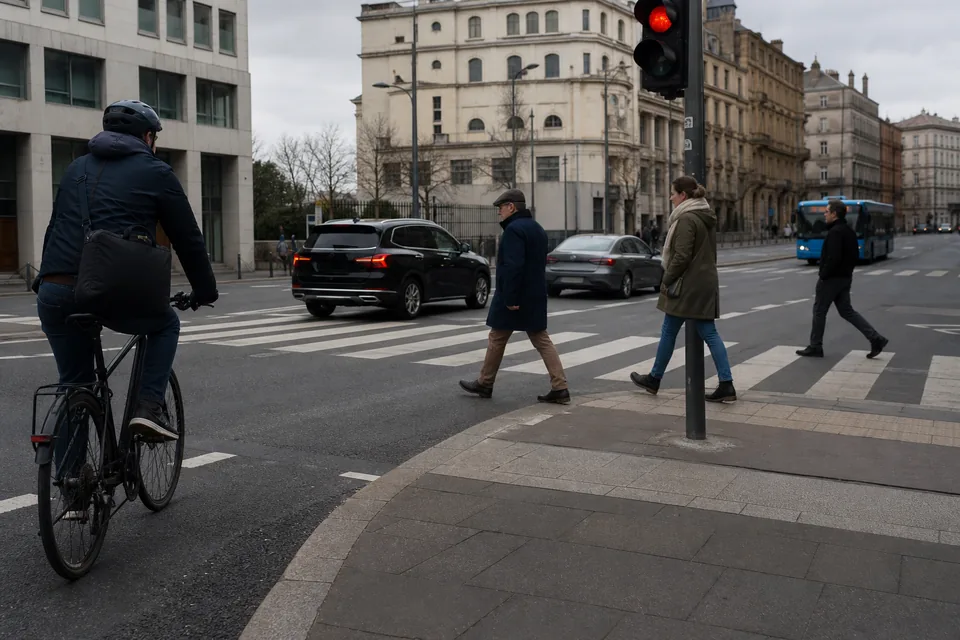
Labels from any tool go through the same review workflow. A labeler submits, a reviewer approves or sends the image back with a comment. When a version is frozen, you export it as COCO JSON, YOLO txt with data.yaml, Pascal VOC XML or CSV. Detection teams usually start with the YOLO labeling tool export, while segmentation and keypoint datasets fit best in the COCO annotation tool export.
FAQ
Can I use several data annotation tools in one project?
Yes. A label schema can assign boxes to some classes, polygons or masks to others and keypoints to a third group. Labelers switch tools with B, P and K without leaving the image.
Does the AI pre-label every annotation type?
Yes. The AI model proposes boxes, polygons, segmentation masks, keypoints and image classes for your schema, each with a confidence score. Labelers accept, edit or reject each proposal.
Which tool is the cheapest to label with?
Image classification, then bounding boxes. Masks and skeletons take the most time per object, so use them only when your model needs that level of detail.
Can I change tools after labeling has started?
You can add new classes and tools to the schema at any time. Existing labels stay as they are, and a new dataset version keeps a clean record of what changed.
Try every tool on your own image
Upload one image to the free demo on the homepage, pick a task and see AI drawn labels you can edit in the real editor.