Auto labeling that drafts every object for your classes
Auto labeling in ImageLabeling means an AI model opens each image before your team does and draws a first draft of the labels: boxes, polygons, segmentation masks, keypoints or an image class, using the classes in your schema. Each object comes with a confidence value. Your labelers then check instead of draw. This page explains how drafts are produced, how confidence is used, how the accept flow works and exactly how the monthly AI image quota counts.
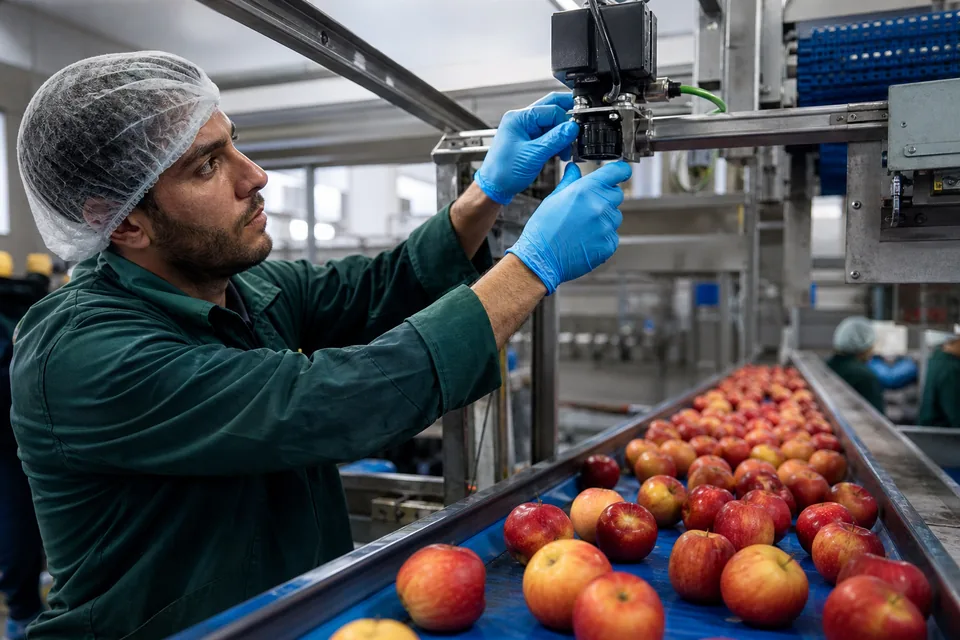
What auto labeling draws on an image
The model drafts the annotation types your project uses. Detection projects get bounding boxes. Segmentation projects get polygons and masks. Pose projects get keypoints placed on a skeleton. Classification projects get an image class. Drafts use your class names and colors, so they look exactly like labels a person made, only marked as AI drafts until someone accepts them.
- Boxes and polygons on every plan
- Segmentation masks from Team
- Keypoint skeletons from Business
- Image classes on every plan
Auto annotation driven by class prompts
The model needs to know what to look for. It reads the class list from your label schema, and you can add a short prompt per class to sharpen it, for example "hard hat, any color" or "scratch on painted metal". Hierarchical classes help too, because a labeler can refine a coarse draft such as vehicle into forklift from the class picker in one step. When your schema changes, the next drafts follow the new classes.
- Class list taken from the project schema
- Optional prompt text per class
- Coarse and fine classes through the schema hierarchy
Confidence per object, and how to use it
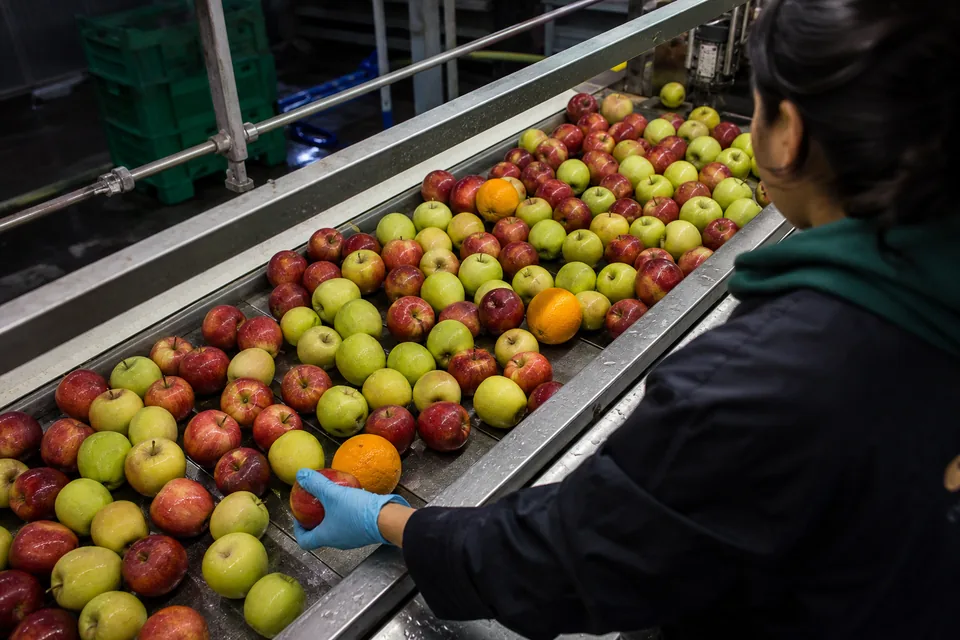
Every drafted object shows a confidence value in the object list. Sort by it and uncertain objects come first, so labelers spend their attention where the model is least sure. Confidence is a guide for review order, not a guarantee, which is why a person still accepts each object.
The accept flow, one key per decision
Open an image and the drafts are already there. Press A to accept the selected object, drag an edge or vertex to correct it, or delete it to reject it. Fix a wrong class from the picker without redrawing. Draw anything the model missed with B, P or K. Press D for the next image. Accepted objects become normal labels and go through review like everything else. The full editor is described on the image labeling tool page.
How automated data labeling counts against your quota
Each plan includes a monthly number of AI pre-labeled images: 1,000 on Starter, 3,500 on Team, 12,000 on Business and 35,000 on Enterprise. The rule is simple.
The quota resets with each monthly period. When you reach it, labeling continues by hand for the rest of the period, or you move to a higher plan, charged right away for the difference. Every limit is listed on the pricing page.
- One image pre-labeled by AI once counts as one.
- Manual labeling never counts.
- Re-exports never count.
- Deleting images never frees the monthly AI quota.
When drafts save the most time
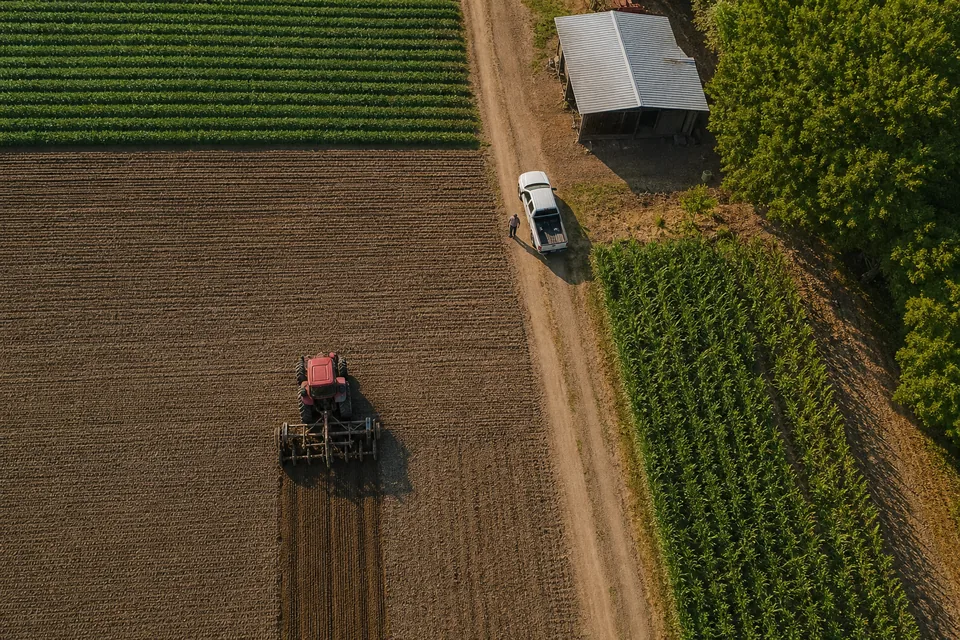
Drafts pay off most on common objects with clear edges: products on shelves, vehicles, people, boxes on a conveyor. They help less on rare classes the model has little sense of, or on subtle defects. For those, keep auto labeling on for the easy classes and let labelers draw the hard ones. The human side of this split is explained on the AI data labeling page, and the full step order on the image annotation workflow page.
FAQ
Is my data used to train the auto labeling model?
No. Your images are used only to label your dataset and never to train third party models.
Can I turn auto labeling off for a project?
Yes. Turn it off and labelers draw from scratch, which uses no AI quota at all.
Do auto labels go straight to export?
Not when review is on. Drafts must be accepted by a labeler and approved by a reviewer before they count as reviewed labels in a frozen version.
Can I run auto labeling on labels I imported?
Imported labels arrive as normal labels. You can run AI drafts on the same images to fill in classes that were not labeled before, and each image counts once.
See auto labeling on your own image
Upload one image, choose detect, segment, keypoints or classify, and watch the drafts appear.