Image labeling tool with a keyboard first editor
The editor is the heart of ImageLabeling, and this page is about it alone. It is an image labeling tool designed for people who label hundreds of images a day: every common action has a single key, AI drafts are already on the image when it opens, and the label schema keeps every labeler using the same classes. Below are the layout, the shortcuts, the drawing tools and how the schema works.
What you see when an image opens

The image sits in the center with AI drafted objects already drawn. On the left, the object list shows each object with its class and confidence, and you can filter it by class or sort it by confidence so the uncertain objects come first. On the right, the class picker and the attributes of the selected object. Along the bottom, the queue position and the undo history.
- Object list with class filter and confidence sort
- Class picker and attributes per object
- Undo history for every change on the image
Keyboard shortcuts in the image labeling tool
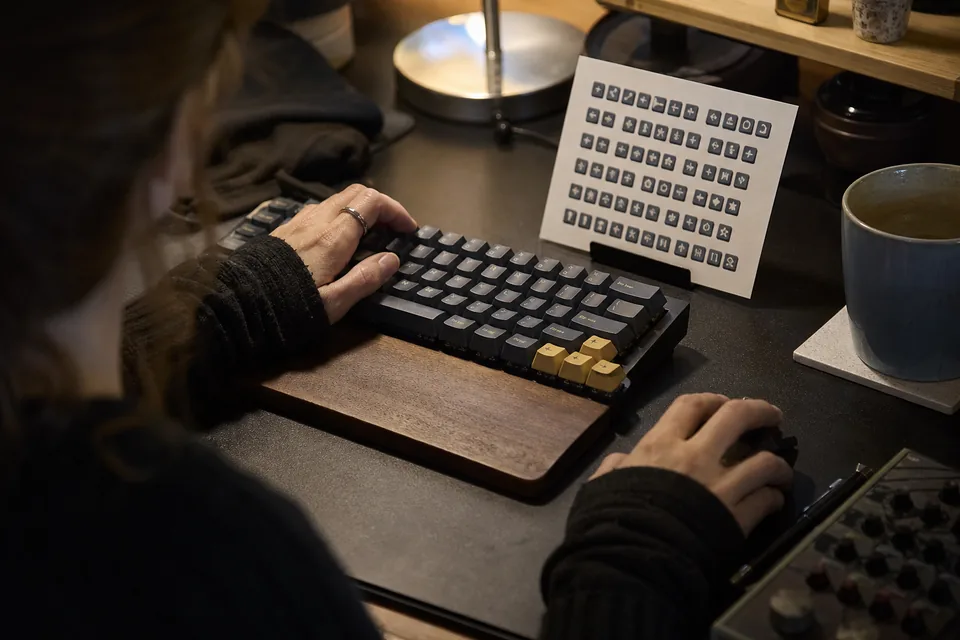
Hands stay on the keyboard and mouse together: the keyboard picks the tool and moves through work, the mouse draws. These are the core shortcuts every labeler learns on day one.
The class picker, zoom and undo are always one keystroke or one click away. Accepting AI objects with A and moving on with D is the rhythm of most images once the drafts are good for your classes.
| Key | Action |
|---|---|
| B | Draw a bounding box |
| P | Draw a polygon |
| K | Place a keypoint |
| A | Accept the selected AI object |
| D | Go to the next image |
Boxes, polygons, masks and keypoints
Boxes are drawn corner to corner and adjusted by dragging any edge. Polygons are clicked point by point and closed on the first point. Masks are painted with a brush or filled from a polygon, which is faster on objects with straight edges. Keypoints are placed in the order your skeleton defines, and missing points are marked as not visible. Each tool has its own page with detail: bounding box annotation, image segmentation tool and keypoint annotation tool.
- Zoom for small objects and crowded scenes
- Brush and polygon for segmentation masks (Team and higher)
- Keypoint skeletons (Business and higher)
A label schema the whole team shares
Before labeling starts, an admin defines the schema: classes, a color per class, attributes such as occluded, truncated or color, and hierarchical classes when you need both coarse and fine labels. The schema is the same list the AI model uses to draft objects, so drafts arrive with your class names. Save it as a template and the next project starts with the same definitions.
- Classes and colors
- Attributes per object
- Hierarchical classes
- Reusable templates
Accept, edit or reject AI drafts
Every drafted object is one decision. Press A to accept it, drag a corner or a vertex to edit it, or delete it to reject it. Change a wrong class from the picker without redrawing. Objects the AI missed are drawn with B, P or K as usual. How drafts are produced and counted is on the auto labeling page.
Which plan unlocks which tool
Starter covers boxes, polygons, points and image classes. Team adds segmentation masks and attributes. Business adds keypoint skeletons and custom schemas. Enterprise includes everything. Prices start at 49 USD per month, and each plan is half price per month when billed yearly. See pricing.
FAQ
How quickly can a new labeler learn the editor?
The five core keys cover most of the work, so a new labeler usually starts on a small batch the same day. The reviewer then sends back mistakes with comments until the work is consistent.
Does the image labeling tool work on large images?
Yes. Zoom in for small objects and pan across the image while you label. Labels are stored in the coordinates of the full image.
Can two people edit the same image at once?
Images are assigned through the queue, so one labeler works on an image at a time. A reviewer then sees it after the labeler.
Is there an undo for accepted drafts?
Yes. Undo history covers accepts, edits, rejects and new objects on the current image.
Try the editor on your own image
Upload one image, let AI draw the first objects and edit them in the real editor layout.