Last updated October 19, 2026
How to label images for object detection, a step by step guide
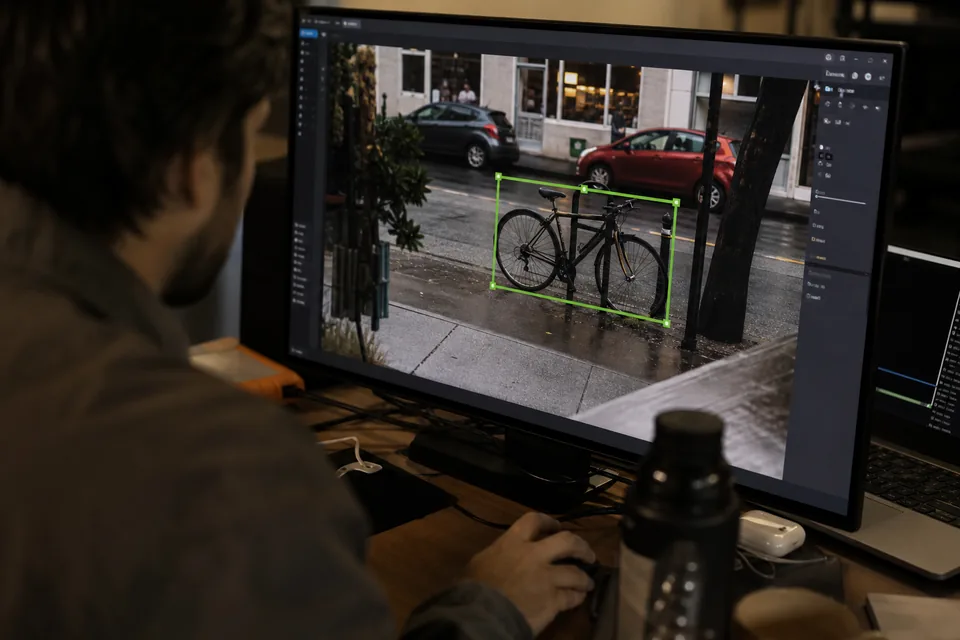
Knowing how to label images for object detection is less about drawing rectangles and more about making hundreds of small decisions the same way every time. A detector learns exactly what your boxes tell it, including the inconsistencies. This guide walks through the full process: defining classes, writing box rules, preparing images, labeling efficiently with AI pre-labels, handling the edge cases that cause most disagreements, reviewing work, and exporting a versioned dataset your training code can read.
Start with the question your model must answer
Before you open any labeling tool, write one sentence that describes what the detector should do in production. For example: "find every pallet and forklift in a warehouse aisle camera frame, including partly hidden ones". That sentence decides your classes, your occlusion rule and which images you need.
Then list how the predictions will be used. If you only count objects, small box errors do not matter much. If a robot grasps based on the box, they do. If you need exact shapes, read our comparison of bounding box vs segmentation before you commit to boxes.
Collect images that match production
Label the images your model will actually see. Same cameras, same angles, same lighting, same seasons. A few hundred well chosen images from the real environment are worth more than thousands of web photos.
- Include images with no target objects. The detector needs background examples to learn when not to fire.
- Include hard cases on purpose: night, glare, rain, motion blur, crowded scenes.
- Remove exact and near duplicates, especially consecutive video frames, so the same scene does not land in both train and test.
- Keep original resolution. Downscale at training time, not before labeling.
Decide on image resolution and tiling
If objects are tiny relative to the frame, such as defects on a large part or vehicles in aerial images, consider splitting large images into overlapping tiles before labeling. Labelers see objects at a useful size, and the detector can be trained on tiles that match its input resolution. Keep the tile overlap large enough that objects cut by one tile edge appear whole in the neighboring tile, and record the tiling settings so inference uses the same layout.
Define classes that labelers can tell apart
Every class needs a definition a new labeler can apply without asking. Write one sentence per class, add two correct examples and one typical mistake.
| Class | Definition | Include | Exclude |
|---|---|---|---|
| pallet | Wooden or plastic pallet, loaded or empty | Stacked pallets, each one boxed separately | Pallet shaped shelving parts |
| forklift | Powered forklift truck of any color | Forks raised or lowered, operator inside | Hand pallet jacks |
| person | Any visible human | Partly visible people, reflections in mirrors only if the guideline says so | Posters and screens showing people |
Keep the class list short at first. Splitting a class later is easy if you used attributes. Merging two classes that were labeled inconsistently is not.
Use attributes instead of extra classes
Properties like "occluded", "truncated", "loaded" or "color" belong in attributes, not in the class name. This keeps the class count small, which helps the detector, while still recording the details you may want later. ImageLabeling supports attributes per object from the Team plan, and hierarchical classes so you can label "sedan" under "vehicle" and train on either level.
Box rules every labeler follows
Write these rules into the guideline and show an image for each one.
- Tightness: box edges touch the outermost visible pixel of the object. No margin.
- Visible part only: for occluded objects, box what you can see. Do not guess the hidden part unless the guideline explicitly asks for full extent boxes.
- Truncation: objects cut by the image border get a box up to the border and the attribute "truncated".
- Minimum size: skip objects smaller than a set size, for example 8 pixels on the short side, and record that number.
- Shadows and reflections: excluded from the box unless they are the object of interest.
- One object, one box: never one box around a group, unless you defined a group class.
Edge cases that cause most disagreements
The same few situations account for most review rejections. Decide them early.
- Dense rows of similar items. Label each one, even if it is tedious. Group boxes break counting.
- Objects behind glass or in mirrors. Decide once and write it down.
- Objects on screens, posters or packaging. Usually excluded, because they are not physically present.
- Partially assembled or damaged objects. Is a forklift without forks still a forklift? Say so in the definition.
- Ambiguous class boundaries, such as a van versus a small truck. Name the deciding visual feature.
- Uncertain cases. The rule is to flag, not guess. Send the image to the issue queue with a short comment.
Machine learning labeling with AI pre-labels
Machine learning labeling has moved from drawing every box by hand to verifying proposals. An AI model draws candidate boxes for your schema, each with a confidence score, and labelers accept, adjust or reject each one. On most images this is faster than drawing, and the human stays responsible for every final label.
Use confidence to plan the work. High confidence proposals usually need a quick look. Low confidence proposals and images with many objects need careful attention. Never accept a batch without looking, because pre-labels repeat the same mistake across many images when they are wrong. Auto labeling on ImageLabeling shows the confidence next to every object, and only images pre-labeled by AI count toward the monthly AI quota.
Keyboard first labeling
Speed comes from not reaching for the mouse menu. In the ImageLabeling editor, B draws a box, A accepts a proposal, D moves to the next image, and the class picker opens on the keyboard. Zoom in for small objects, keep the undo history in mind, and fix boxes by dragging edges rather than redrawing. The bounding box annotation page lists the shortcuts.
Label in batches, not all at once
Label a first batch of a few hundred images, review all of it, and update the guideline with what you learned. Only then label the rest. Early batches always surface rules nobody thought of. Finding them after ten thousand images means relabeling.
Do not let AI pre-labels set the bar
Pre-labels are a starting point, not a standard. Watch for two patterns. First, labelers accepting loose boxes because they are close enough, which slowly loosens the whole dataset. Second, missed objects that the AI model did not propose and the labeler did not notice. Reviewers should check for both, and the guideline should state that the tightness rule applies to accepted proposals exactly as it applies to boxes drawn by hand.
Review labels before they reach training
Every label should be checked by someone who did not draw it. A simple two step flow works for most teams.
- Labeler finishes an image and submits it.
- Reviewer approves it or sends it back with a comment that cites the guideline rule.
- Repeated comments on the same rule mean the rule is unclear. Rewrite it with a picture.
Add consensus on a small sample. Two or three labelers label the same images independently, then you compare. Low agreement on a class means the definition is weak. Low agreement for one labeler means coaching. On Business plans, ImageLabeling tracks a QA score per labeler. Our guide to annotation quality control goes deeper into sampling and metrics.
Quick checks reviewers should run
- Missing objects: scan the image for unlabeled instances, especially small ones at the edges.
- Wrong class: check the class color against the object.
- Loose boxes: look for visible background margin on any side.
- Duplicates: two boxes on the same object, often left over from accepting a proposal and drawing another.
- Empty images: confirm they are truly empty, not skipped.
Split, version and export
When a batch passes review, freeze a dataset version. Then split it into train, validation and test, keeping images from the same scene or video in the same split to avoid leakage. Record the version name with every training run so you can reproduce results.
Export in the format your training code reads. YOLO family trainers want YOLO txt files per image and a data.yaml, which the YOLO labeling tool produces with your split. General detection libraries usually read COCO JSON. Check the coordinate conventions of your chosen format before the first training run.
How many images to label first
There is no universal number. It depends on the number of classes, how different they look, and how varied your environment is. A practical approach is to label a modest first batch per class, train a baseline, and look at failures. Then label more images that resemble the failures. Repeat that loop until the remaining errors are rare enough for your use case.
Organize the labeling team
A clear structure keeps a detection project moving when more than one person labels.
- Owner or admin: maintains the label schema, the guideline and the dataset versions.
- Labelers: label assigned batches and flag unclear images.
- Reviewers: approve or send back images with a comment, and propose guideline changes.
- Viewers: ML engineers or managers who need to see progress and export data without editing labels.
Assign batches instead of letting everyone pick images freely. Batches make progress visible, keep similar images with one labeler for consistency, and make it easy to see where review rejections cluster. Hold a short calibration session at the start, where everyone labels the same twenty images and discusses differences. It aligns people faster than any document.
Track progress with simple numbers
Three numbers are enough to manage a labeling project: images labeled, images approved and images sent back. Watch the share sent back per class and per labeler. A rising share after a guideline change is normal for a few days. A steady high share means the rule or the training needs work. Also track images flagged as unclear, because that queue shows where the guideline is silent.
Use model errors to choose the next images
After the first training run, sort validation errors into groups: missed small objects, confusion between two classes, false alarms on a specific background. Each group points to a labeling action. Add more images of that condition, clarify a class definition, or add background images that look like the false alarms. Labeling becomes a loop driven by model behavior, not a one time task.
When you change a guideline, record it, update the affected labels, and freeze a new version. Comparing versions shows labels added, changed or removed, which explains shifts in metrics between runs.